Electronic Purchase Order (EPO)
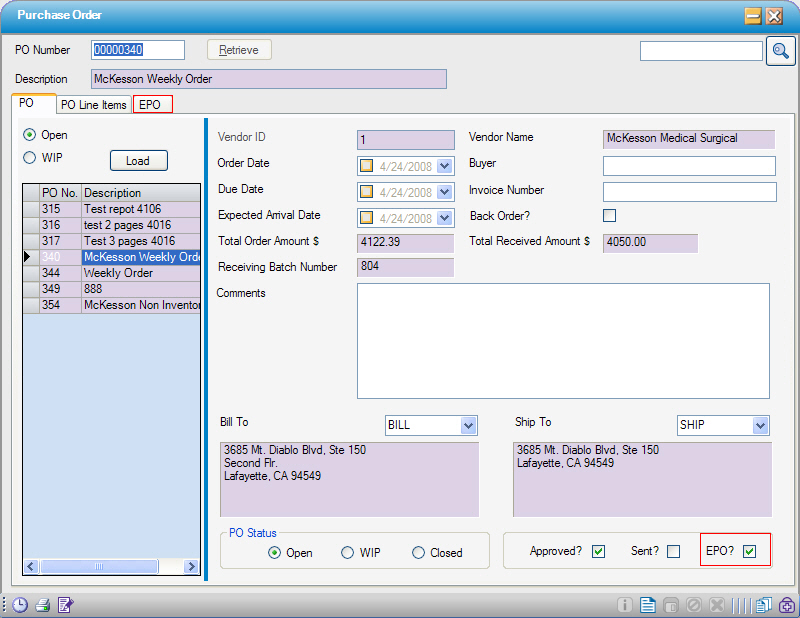
When creating a new purchase order, if a vendor is configured for EPO, the "EPO?" check box will be checked, and a 3rd EPO tab will be available.
Create the purchase order, then submit it on the EPO tab.
EPO tab
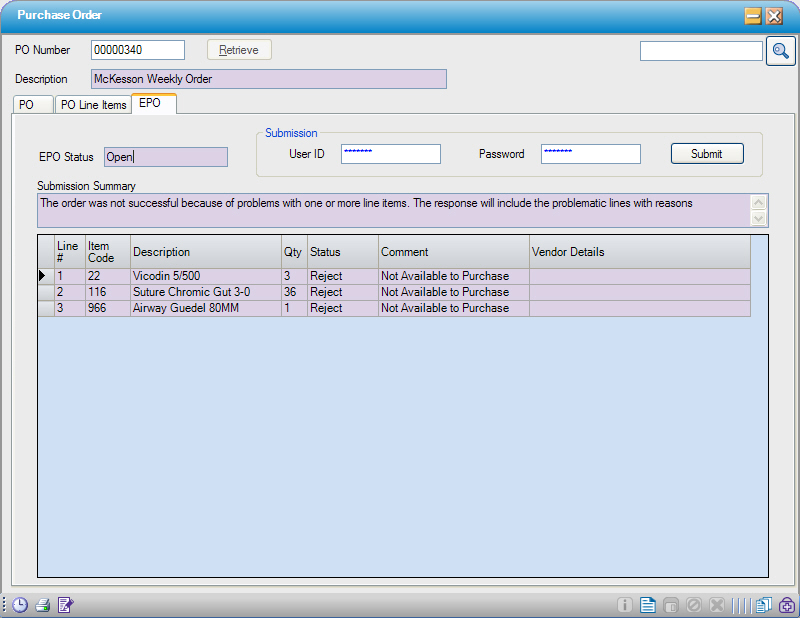
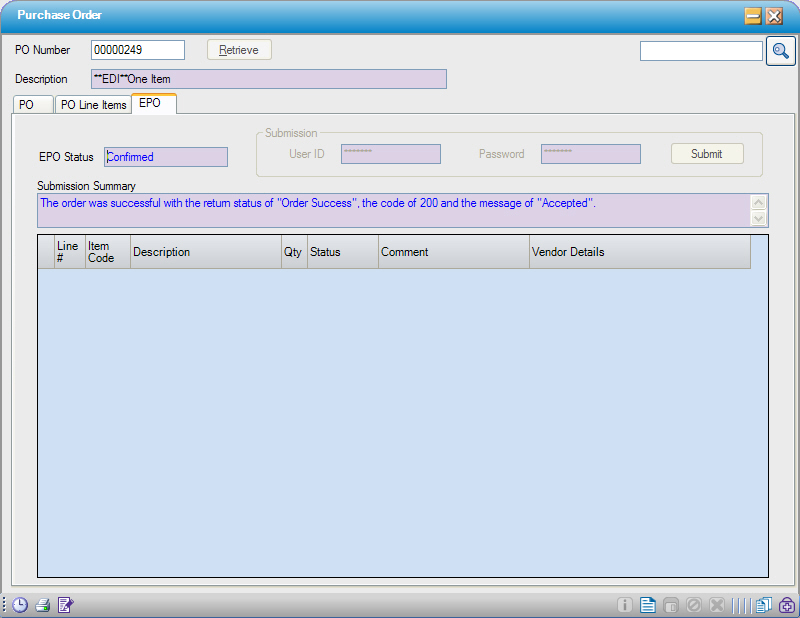
Use this tab to monitor the status of the electronic purchase order.
- The User ID and Password are provided by the vendor. This information is cached at the individual workstations.
- The EPO Status will either be "Open" or "Confirmed".
In the example below, several items were rejected due to the items not being available for purchase. In order to submit this order successfully, return to the PO Line Items tab, delete the rejected items, and resubmit.